
How to change alt text on a WooCommerce product image
Find the main product photo in the WordPress Media Library, change its alternative text and check what a visitor actually receives. Includes a worked example from a test shop.

To change the alt text for a WooCommerce product’s main photo, find the file in the WordPress Media Library, open Edit Media, enter the wording under Alternative Text and choose Update. Then open the product as a visitor and check the image. That final check matters when a theme or gallery plugin controls how the picture appears.
First, identify the right picture
Open the product in WooCommerce and look at its main product image. A photograph inside the product description can come from an ordinary WordPress Image block. It can have its own alt text. Changing the main product image when the problem is a picture halfway down the description sends you to the wrong editor.
Change the main image in the Media Library
- In the WordPress dashboard, open Media → Library and switch to list view. Find the exact file used for the product’s main photo.
- Open the file’s edit screen. In Alternative Text, describe the visible detail a shopper would miss if the image did not load. For example, the second photo of a bag might show where its shoulder strap attaches. Repeating the product name tells the shopper very little about that view.
- Choose Update. If several products use the same file, check that the wording makes sense for each of them.
Check the public product page
Open the product address in a private browser window. Right-click its main picture, choose Inspect and look for alt on the img element. Compare that text with what you saved. The caption underneath a picture and the text in the browser tab are different fields.
We tested this with a pencil illustration in a disposable shop running WordPress 7.1.5 and WooCommerce 11.3.0. We saved “Terracotta pencil with a sharpened tip, shown diagonally.” The main product image delivered those words to a signed-out visitor. The screenshot above shows the field and the product image from that check.
Find the next product that needs attention
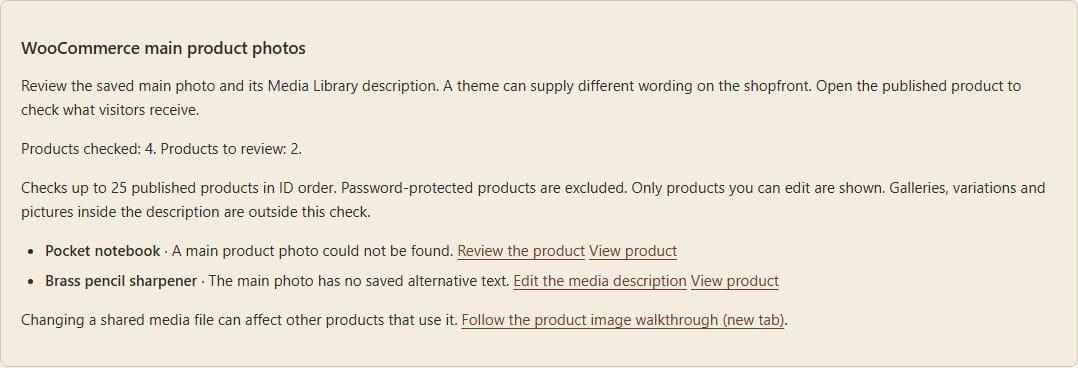
If you have the CAFMO WordPress Companion installed, open Tools → CAFMO as a store administrator. Version 0.2.5 checks a sample of up to 25 published products and points out a missing main photo or an image with empty saved alt text. Choose the product from that list, make the edit in WordPress and check the public page. A clean sample covers those products only.
Frequently asked questions
Do I need another SEO plugin for this?
WordPress supplies the Alternative Text field used in this walkthrough. You can make this change in the Media Library. Your store’s theme or extensions can affect what eventually appears on the page.
What if the wrong text is on a picture inside the description?
Edit the product description, select the Image block and check its own alternative text. Update the product and inspect that particular image on the published page. WordPress Image block instructions.
Does this also change the description used when someone shares the page?
The social sharing image and its description are separate. Check the preview settings for the page if the issue appears on a shared link.
For the controls used here, see WordPress Edit Media and WooCommerce product images and galleries. For a wider review, follow the WordPress SEO audit guide or open CAFMO’s WordPress directions. To keep a record of your own published-page checks, start with one website in CAFMO.